Assignments
Staff a session after checking requirements and conflicts.
Screenshots show the German interface. German control labels are included where needed to help you find them.
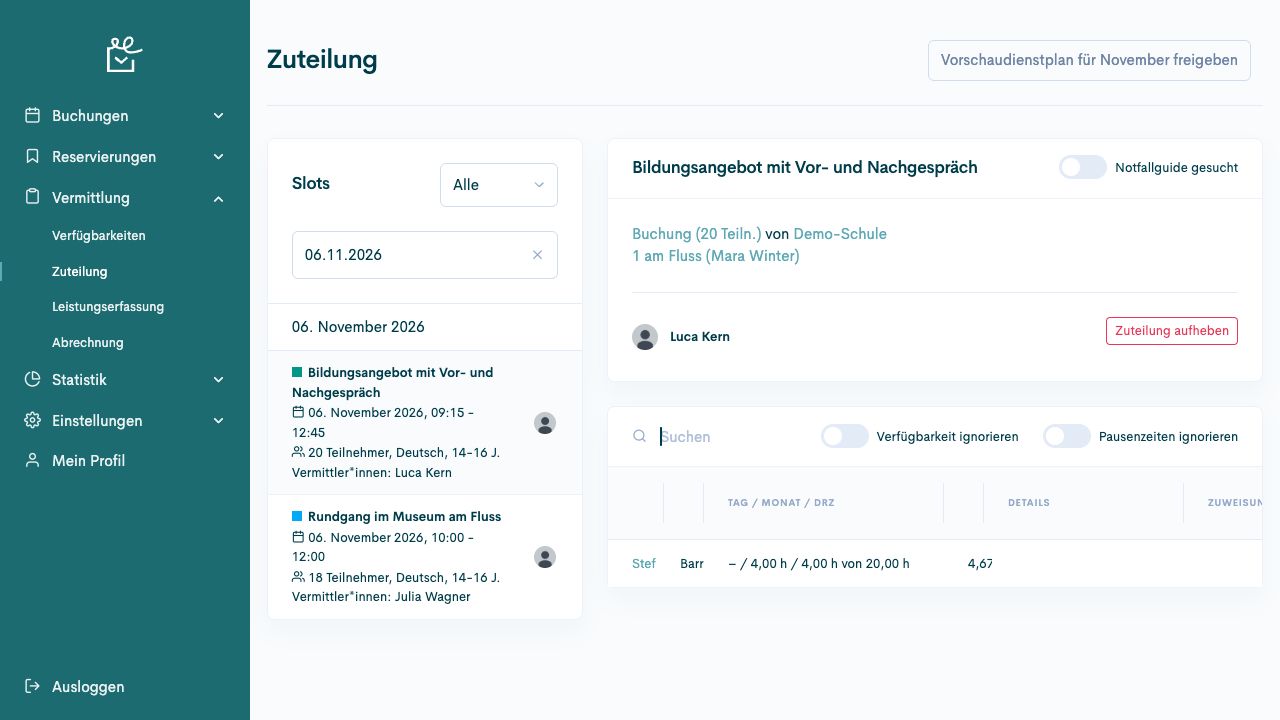
The coordinator staffs a specific offer session. First select the session on the left and check its bookings and already assigned people on the right. Then compare candidates for additional or replacement staffing.
Access and responsibility
Section titled “Access and responsibility”Open Guide coordination → Assignments (Vermittlung → Zuteilung). Editing requires the designated permissions.
Understand the details
Section titled “Understand the details”| Selection or section | Meaning |
|---|---|
| Slots | Offer sessions in the selected period, each with time, participants, language, and existing staffing. |
| Open only | Limits the selection to sessions still open. All (Alle) may be needed for an existing assignment. |
| Emergency only | Limits the selection to sessions marked as urgent. |
| Booking | Opens the appropriate item in the customer order. A session can contain several bookings. |
| Assigned person | Shows saved staffing and the Remove assignment (Zuteilung aufheben) action. |
| Candidates | Supports comparison of suitability and displayed workload. |
| Ignore availability, ignore break times | Broaden the candidate check. An additional displayed entry does not confirm the person’s agreement. |
| Emergency guide wanted | Marks urgent staffing requirements. |
Connections and special considerations
Section titled “Connections and special considerations”The assignment belongs to the session and person. It is not created again for every booking item in the same session.
Candidate checks use several different prerequisites. Compare the offer language, required skills, and format knowledge with the person’s profile. Check availability, other assignments, and breaks. A green or visible entry does not replace your staffing decision.
The release action names the following month. Compare it with the period you intend to publish. If the Shift Planning System connection is configured, also check the shift there.
Identify the selected session and staffing
Section titled “Identify the selected session and staffing”The selected session appears on the left. Saved staffing appears above the candidate list on the right. The illustration shows fictional example data.
Assign a person as a guide
Section titled “Assign a person as a guide”Prerequisites
Section titled “Prerequisites”Required role: Guide coordination with assignment permissions.
The booking and its requirements have been checked. Suitable people, availability, and competencies where applicable are maintained.
-
Open Guide coordination (Vermittlung) and Assignments (Zuteilung). Narrow the date range.
-
Open the offer session and compare offer, time, and group with the checked booking.
-
Compare the displayed candidates, their suitable attributes, existing work, and time conflicts. The display may depend on your configuration.
-
Select Assign (Zuteilen) for the intended person.
-
At the same session, check the name under Guides (Vermittler*innen) and the available Remove assignment (Zuteilung aufheben) action.
-
If a connection to the Shift Planning System is configured, agree with the assigned person or authorised planning team whether the associated shift appears correctly.
Check the result
Section titled “Check the result”The selected person is assigned to the specific session. You make the decision; the candidate list does not replace it.
If the process differs
Section titled “If the process differs”If the session is missing, check the period and filter. Existing staffing may be hidden under Open only (Nur Offene).
If a person is missing, check language, format knowledge, skills, availability, and time conflicts. Use Ignore availability (Verfügbarkeit ignorieren) or Ignore break times (Pausenzeiten ignorieren) only for a deliberately expanded check. Clarify the person’s actual ability to work before assigning them.
If the save outcome is unclear, open the session again. Check the name already assigned before repeating the action.
Next steps
Section titled “Next steps”Check your own assignment in the Booking System.
Remove or replace an assignment
Section titled “Remove or replace an assignment”Prerequisites
Section titled “Prerequisites”Required role: Guiding coordinator with assignment permission.
The change and subsequent delivery have been agreed.
-
Open Guide coordination → Assignments (Vermittlung → Zuteilung) and select the affected session.
-
Check the offer, date, and assigned person. Select Remove assignment (Zuteilung aufheben) for that person.
-
With a configured connection, the dialogue may distinguish between deleting the shift and recording an absence. Select the follow-up action agreed with planning.
-
After receiving the response, reload the session and check the saved assignment.
-
For a replacement, compare suitable people and make the new assignment. Check the associated shift separately if the connection is configured.
Check the result
Section titled “Check the result”The old assignment is removed and an intended replacement is entered on the correct session.
If the process differs
Section titled “If the process differs”If a synchronisation message appears, check both systems. Do not repeat the action solely because feedback is missing without checking the saved state.
Next steps
Section titled “Next steps”Handle urgent staffing
Section titled “Handle urgent staffing”Prerequisites
Section titled “Prerequisites”Required role: Guide coordination.
The requirement and next steps have been agreed.
-
Open the session in Guide coordination → Assignments (Vermittlung → Zuteilung).
-
Check existing assignments and the staffing still required.
-
Activate Emergency guide wanted (Notfallguide gesucht) if required and check the saved session.
-
Compare suitable people or incoming requests. Manually assign the intended person after checking.
-
After staffing, also check the emergency flag and agree any required change.
Check the result
Section titled “Check the result”The urgent requirement and actual staffing are traceable.
If the process differs
Section titled “If the process differs”An emergency flag confirms neither an assignment nor delivery of a notification. Availability and suitability still need checking.
Check and publish assignments
Section titled “Check and publish assignments”Prerequisites
Section titled “Prerequisites”Required role: Guiding coordinator with publication permission.
The connection to the Shift Planning System and responsibility for release are configured.
-
Check assignments and open sessions for the intended month.
-
Open Guide coordination → Assignments (Vermittlung → Zuteilung) and read the month in the release action. The available actions refer to next month.
-
For the preview, select Release preview roster … (Vorschaudienstplan … freigeben). Check the dialogue and confirm with Yes, release (Ja, freigeben).
-
For final publication, select Publish roster … (Dienstplan … veröffentlichen) and confirm the checked dialogue with Yes, publish (Ja, veröffentlichen).
-
In the connected Shift Planning System, check the resulting monthly status and affected assignments.
Check the result
Section titled “Check the result”The correct month has the intended preview or publication status.
If the process differs
Section titled “If the process differs”The actions use the configured connection. A message about sending does not replace checking the monthly status and actual delivery.