Availability
Maintain and check available days and time intervals.
Screenshots show the German interface. German control labels are included where needed to help you find them.
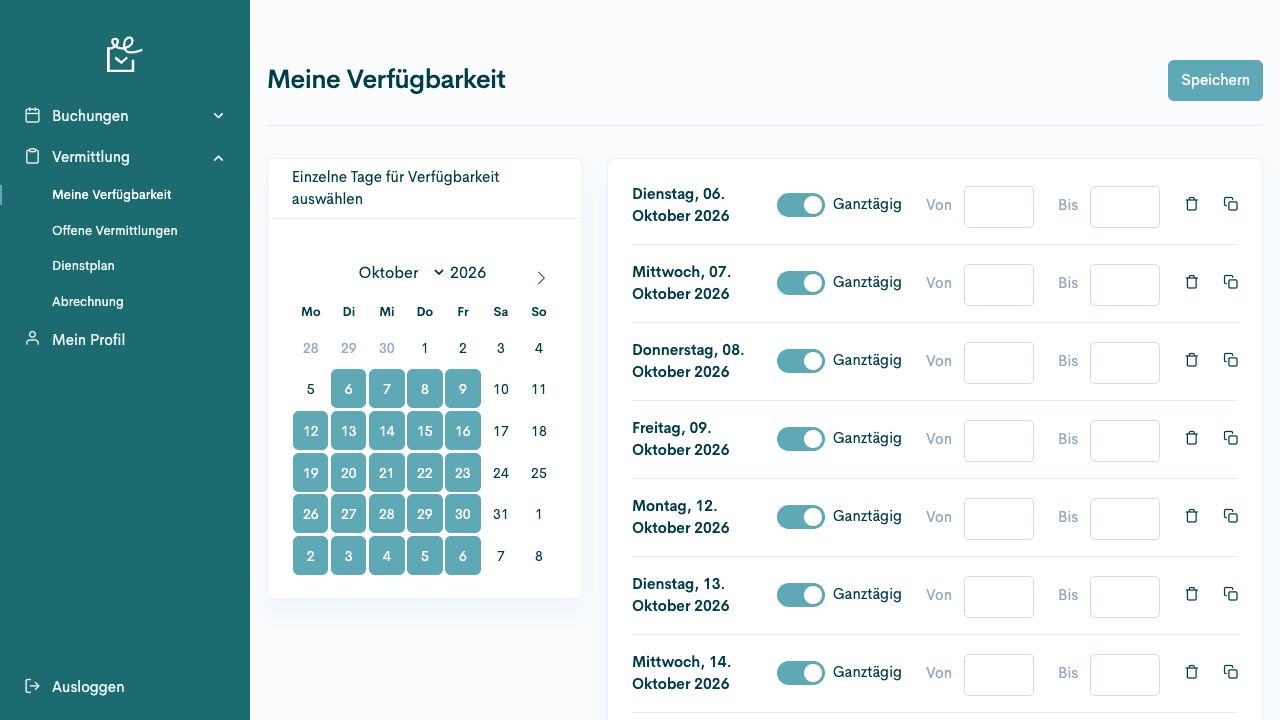
Availability states when a person can generally work. It confirms neither suitability for every offer nor an assignment. Languages, format knowledge, skills, and other assignments are checked separately.
Access and responsibility
Section titled “Access and responsibility”Open Guide coordination → Availability (Vermittlung → Verfügbarkeiten). Editing requires the designated permissions.
Understand the details
Section titled “Understand the details”| Detail | Meaning for your work |
|---|---|
| Calendar | Selects individual available days. |
| All day | Indicates availability without a specific time interval. |
| From and To | Describe an available time window on the relevant day. |
| Daily rows | Can be added, copied, or removed. |
| Person selector | Allows the coordinator to select a person. |
Connections and special considerations
Section titled “Connections and special considerations”With a personal guide account, the menu item is called My availability (Meine Verfügbarkeit). Coordinators have a person selector. Check the displayed name before every change there.
The calendar selects days. The daily rows beside it describe their extent: All day (Ganztägig) or a period with From (Von) and To (Bis). A selected day alone therefore does not yet show the available time window.
Save (Speichern) records changes. After reopening, compare the selected days and daily intervals. Check an assignment separately in the roster.
Read days and time windows
Section titled “Read days and time windows”Selected days appear on the left. Each day’s available period appears on the right. The illustration shows fictional example data.
Enter and change my availability
Section titled “Enter and change my availability”Prerequisites
Section titled “Prerequisites”Required role: Guide with a personal account.
You know your available periods. Availability does not confirm an assignment.
-
Open Guide coordination → My availability (Vermittlung → Meine Verfügbarkeit).
-
Select available days in the calendar. Check the daily rows displayed for them.
-
Leave All day (Ganztägig) active for a whole day, or enter From (Von) and To (Bis).
-
Use a daily row’s copy action for another time interval. Remove a row if the period no longer applies.
-
Select Save (Speichern) and reopen the view to check days and periods.
Check the result
Section titled “Check the result”Your saved availability matches the periods you offered.
If the process differs
Section titled “If the process differs”Selecting days in the calendar alone does not save the details. For several intervals, check that the periods are on the correct day.
Check a person’s availability
Section titled “Check a person’s availability”Prerequisites
Section titled “Prerequisites”Required role: Guiding coordinator.
The person concerned and assignment period are known.
-
Open Guide coordination → Availability (Vermittlung → Verfügbarkeiten).
-
Use the person selector to choose the person concerned. Check the name before editing.
-
Compare days and individual time intervals with the planned assignment.
-
If an agreed change is needed, adjust the daily rows and select Save (Speichern).
-
Also check existing work and conflicts under Assignments (Zuteilung).
Check the result
Section titled “Check the result”You know the saved period and have checked existing assignments separately.
If the process differs
Section titled “If the process differs”A person may be available but still unsuitable because of another assignment or a requirement.