Offers
Configure an offer's content, price, and requirements for running it.
Screenshots show the German interface. German control labels are included where needed to help you find them.
An offer is the plan for a visit. It combines public content and price with requirements for staff, rooms, and equipment. Only a specific session assigns available people, rooms, and individual resources to these requirements.
Access and responsibility
Section titled “Access and responsibility”Open Settings → Offers (Einstellungen → Angebote). Editing requires the appropriate permissions.
Understand the information
Section titled “Understand the information”| Section | What you define |
|---|---|
| Description | Name and description in German and English. |
| Details | Location, status, offer languages, Maximum number of participants (Maximale Teilnehmerzahl), and possible payment methods. Bookable only by booking service (Nur von BS buchbar) restricts booking to the booking service. |
| Price | Flat rate (Pauschalpreis) with a group price, or the per-person prices provided for the offer type. |
| Guide | Staff requirements, accounting based on actual work, and desired skills. |
| Resources | Resource types required for the entire session or each participant. |
| Activities | Consecutive phases with a duration and appropriate room type. |
| Offer availability | Location opening hours, specific days with a start time, or seasonal periods. |
Context and special cases
Section titled “Context and special cases”The Participants (Teilnehmer) column in the offer list totals participants at offer sessions. It does not show a group limit. The limit is in the offer form under Maximum number of participants.
A session’s actual participant capacity can be lower because of its reserved rooms. An offer with a limit of 30 people can therefore have a session whose selected room permits only 20 people.
An offer’s language describes the bookable delivery. German and English descriptions are separate content. Staff selection also depends on people’s languages, familiarity with formats, and skills.
When changing offers already in use, also check affected future sessions. A changed template alone does not confirm an updated room or staffing plan.
How activities become room reservations
Section titled “How activities become room reservations”An activity’s duration starts after the previous activity ends. A phase with No room required (Kein Raum erforderlich) also counts towards the total duration.
An example starts at 09:15. The first phase lasts 45 minutes, the second 120 minutes, and the third 45 minutes. The visit ends at 12:45. If only the first and last phases require a room, room occupancy runs from 09:15 to 10:00 and from 12:00 to 12:45.
You select room types in the offer. In the booking, you see the specific rooms reserved for them. Resources have the same distinction between a required type and individually reserved equipment.
Activities in the offer form
Section titled “Activities in the offer form”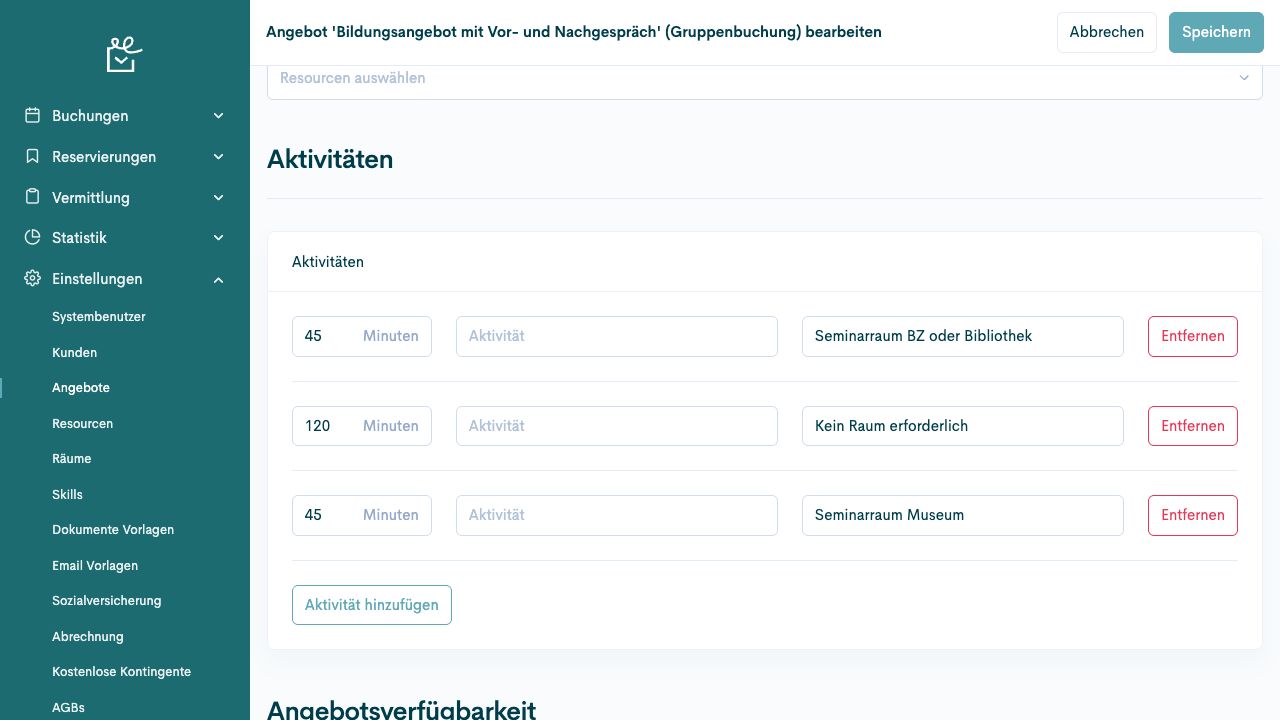
The middle phase requires no room. Its 120 minutes remain part of the visit duration. The image shows fictional example data.
Create and check an offer
Section titled “Create and check an offer”Prerequisites
Section titled “Prerequisites”Required role: Administration or booking service with offer permissions.
The content, location, price, and requirements for running the offer have been agreed.
-
Open Settings → Offers (Einstellungen → Angebote) and select Create offer (Angebot anlegen).
-
Select the appropriate offer type. Clarify the use of internal and external types with your organisation.
-
Maintain German and English names and descriptions, as well as status, location, and languages.
-
Check participant limits, age information, price, and payment methods. If required, specify that only the booking service may make bookings.
-
Maintain requirements for guides, skills, resources, and activities, as well as the offer’s availability.
-
Select Create (Anlegen). Check the saved offer and a relevant offer search.
Check the result
Section titled “Check the result”The offer contains the agreed content and requirements.
If the process differs
Section titled “If the process differs”A saved or active offer does not have free sessions at every time. Opening hours, rooms, resources, and other rules affect whether it can run.
Set prices and participant limits
Section titled “Set prices and participant limits”Prerequisites
Section titled “Prerequisites”Required role: Authorised offer editing.
The valid prices and limits have been agreed.
- Open the offer under Settings → Offers (Einstellungen → Angebote).
- Check Maximum number of participants (Maximale Teilnehmerzahl) in the Details section. Do not use the total participant count in the offer list for this.
- In the Price (Preis) section, check the Flat rate (Pauschalpreis) selection. For a flat rate, the displayed group prices apply.
- Enter the agreed full and reduced prices in the fields provided for this offer type.
- Select Save (Speichern). Compare the price in a relevant booking selection with the approved pricing model.
Check the result
Section titled “Check the result”The pricing model and limits match the approved offer.
If the process differs
Section titled “If the process differs”The visible price fields depend on the offer type. A change does not automatically determine the financial treatment of orders already completed.
Configure room phases and resource requirements
Section titled “Configure room phases and resource requirements”Prerequisites
Section titled “Prerequisites”Required role: Authorised offer editing.
Room types, sequence, duration, and equipment requirements have been clarified.
- Open the offer under Settings → Offers (Einstellungen → Angebote). Check the location.
- Under Activities (Aktivitäten), create each phase in the intended order. Select Add activity (Aktivität hinzufügen) if required.
- Enter each phase’s duration in minutes, name, and room type. For a phase that needs no room, select No room required (Kein Raum erforderlich).
- Add the phase durations and compare the total duration with the planned visit.
- Under Resources required for the offer (Benötigte Resourcen für das Angebot), select the requirements for the session. Under Resources required per participant (Benötigte Resourcen pro Teilnehmer), select the requirements per person.
- Select Save (Speichern). For a relevant session booking, check the actual room time slots and resources. Check that the selected rooms suit the group size.
Check the result
Section titled “Check the result”The ordered phases and resource requirements are clear in the offer.
If the process differs
Section titled “If the process differs”A required type is not yet a specific room or resource assignment. If capacity is unavailable, check master data and occupancy.
Next steps
Section titled “Next steps”Change or deactivate an offer
Section titled “Change or deactivate an offer”Prerequisites
Section titled “Prerequisites”Required role: Authorised offer editing.
The change and its timing have been agreed.
-
Find the correct offer under Settings → Offers (Einstellungen → Angebote) and open it for editing.
-
Check existing sessions and bookings before changing duration, price, or requirements.
-
Change the agreed details. Select the intended Status if the offer is to become inactive.
-
Select Save (Speichern) and check the saved details.
-
Check the offer search and affected sessions. Clarify separately how existing bookings will proceed.
Check the result
Section titled “Check the result”The offer has the intended details and status.
If the process differs
Section titled “If the process differs”Changing an offer’s status does not replace processing existing bookings or staff assignments.