Rooms
Check room occupancy and manual reservations.
Screenshots show the German interface. German control labels are included where needed to help you find them.
The reservation overview shows which specific room is occupied at which time. It includes room phases of offer sessions and manual reservations for additional uses. The reservation’s origin determines where it is changed.
Access and responsibility
Section titled “Access and responsibility”Open Reservations → Rooms (Reservierungen → Räume). Editing requires the designated permissions.
Understand the details
Section titled “Understand the details”| View or detail | Meaning |
|---|---|
| List view | Shows the time, room, and Reserved for (Reserviert für) within the selected period. |
| Calendar view | Shows when reservations occur. |
| Grouped calendars | Shows a separate weekly calendar for each room. Previous week (Vorherige Woche), This week (Diese Woche), and Next week (Nächste Woche) change the week. |
| Reserved for | Links the reservation to a session or additional use. |
| Reserve room | Opens manual entry with Day (Tag), From (Von), To (Bis), Room (Raum), and an internal comment. |
Connections and special considerations
Section titled “Connections and special considerations”A room phase can be shorter than the entire visit. Check each phase’s start and end, rather than just the offer’s time window.
A reservation from an offer session is checked and changed through the associated booking. Additional manual uses are maintained under Reservations → Rooms.
Settings → Rooms (Einstellungen → Räume) describes the room itself, such as its type and capacity. Changing room master data does not change its reservations.
Room phases in the booking
Section titled “Room phases in the booking”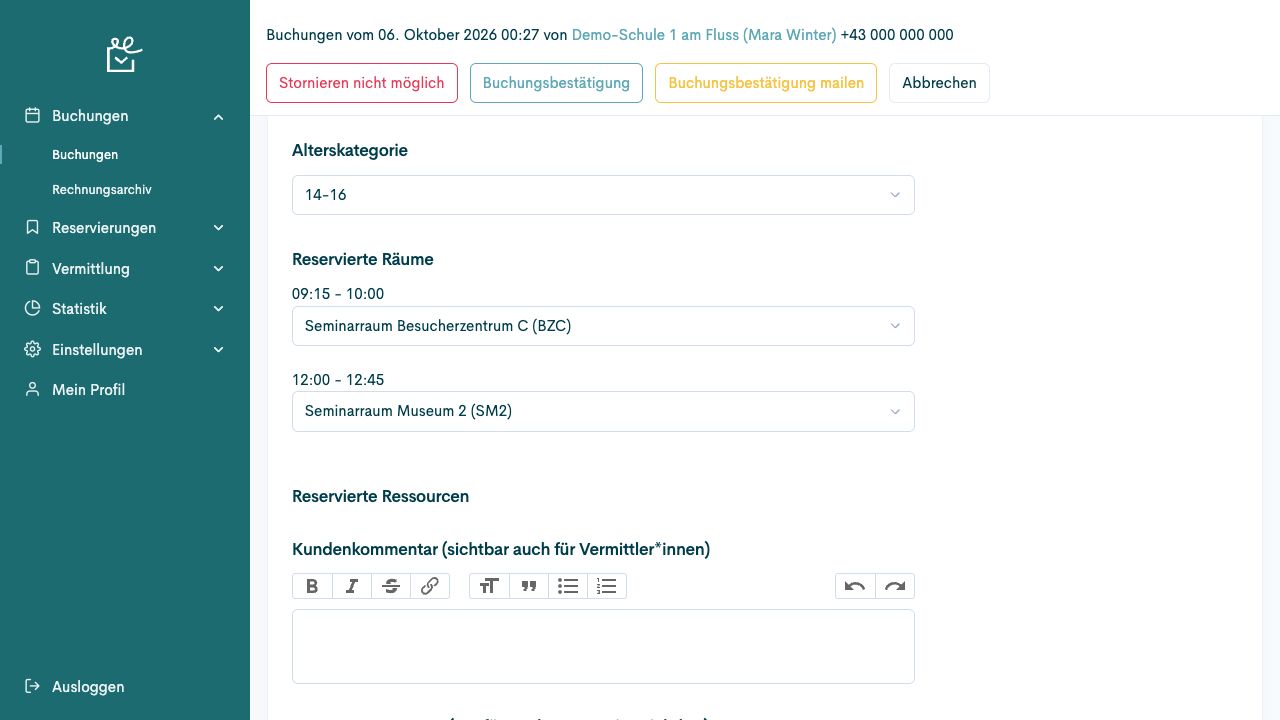
The preliminary and follow-up discussions occupy different rooms. For this offer, the time window between them requires no room. The illustration shows fictional example data.
Find and check a room reservation
Section titled “Find and check a room reservation”Prerequisites
Section titled “Prerequisites”Required role: Staff with access to reservations.
You know the date, time period, and required room.
-
Open Reservations → Rooms (Reservierungen → Räume) and narrow the period in List view (Listenansicht).
-
Compare the room, start, end, and associated use.
-
Open Calendar view (Kalenderansicht) to check for overlaps.
-
Use Grouped calendars (Gruppierte Kalender) to compare several rooms side by side. Navigate to the correct week.
-
For a reservation associated with an offer, check the related session and its room phases in the booking.
Check the result
Section titled “Check the result”The reservation is associated with the correct room, time period, and visit.
If the process differs
Section titled “If the process differs”An empty view may result from the period or selected resource. Edit a session’s room phase through the booking process, rather than as an independent manual reservation.
Next steps
Section titled “Next steps”Reserve a room manually
Section titled “Reserve a room manually”Prerequisites
Section titled “Prerequisites”Required role: Staff with reservation permission.
The day, start, end, and required use have been clarified.
-
Open Reservations → Rooms (Reservierungen → Räume) and select Reserve room (Raum reservieren).
-
Enter Day (Tag), From (Von), and To (Bis). Check the entire time window.
-
Select the required entry under Room (Raum). Allocated (Vergeben) indicates an existing reservation.
-
Check the displayed daily calendar. Add an Internal comment (Internen Kommentar) if preparation requires it.
-
Select Save (Speichern). Find the new reservation in the list or calendar and check the time period.
Check the result
Section titled “Check the result”The manual reservation is visible on the correct day and for the correct room or resource.
If the process differs
Section titled “If the process differs”If a message states that the reservation could not be created for this period, check the selection and overlaps. This form selects a resource as a single entry; it has no quantity field.
Change or remove a room reservation
Section titled “Change or remove a room reservation”Prerequisites
Section titled “Prerequisites”Required role: Staff with reservation permission.
You have clarified the purpose of the change. The reservation was created manually.
-
Open Reservations → Rooms (Reservierungen → Räume) and find the reservation in the correct period.
-
Check whether the reservation was created manually or belongs to an offer session. A session reservation cannot be freely edited in this section.
-
Open the manual entry for editing. Change the day, start, end, selection, or comment and check the calendar.
-
Select Save (Speichern). If the use is no longer needed, use the delete action on the appropriate manual entry instead and check the confirmation.
-
Check the list and calendar after the change.
Check the result
Section titled “Check the result”The manual use has been changed or removed correctly.
If the process differs
Section titled “If the process differs”If editing is not permitted, check the link to an offer session and your own permissions. Do not remove another reservation to bypass a conflict.