My cases
Find the next task and handle documents, the decision, and the response in the correct case.
Screenshots show the German interface. German control labels are included where needed to help you find them.
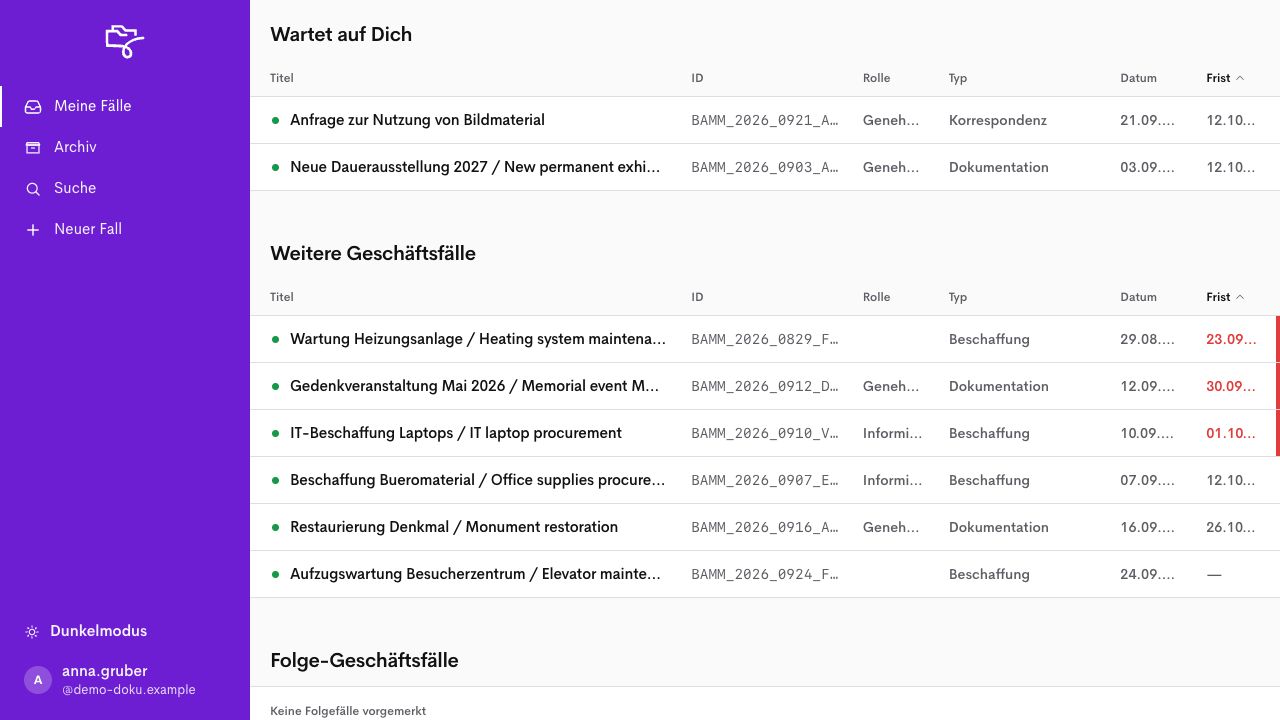
A case keeps the process together: incoming material, documents, substantive handling, the decision, and, where applicable, the response. The case reference remains the shared reference for everyone involved.
Use the correct work list
Section titled “Use the correct work list”Open My cases (Meine Fälle). Waiting for you (Wartet auf Dich) lists pending tasks. Other cases (Weitere Geschäftsfälle) shows other processes available to you. Follow-up cases (Folge-Geschäftsfälle) contains scheduled follow-up cases. A visible case is not automatically a task for you to complete now.
Sort by Title (Titel), ID (ID), Role (Rolle), Type (Typ), Date (Datum), or Deadline (Frist) when looking for a specific process. Compare ID and role before opening the case. A similar title is insufficient to treat two requests as the same.
Start with pending tasks. Compare the role, case reference, and deadline before handling them. The image shows fictional example data.
Read the decision path
Section titled “Read the decision path”In an open case, the decision path shows the order, responsibilities, and deadlines. Current (Aktuell) identifies the step now due. Planned (Geplant) identifies a later step. Completed actions remain visible for traceability.
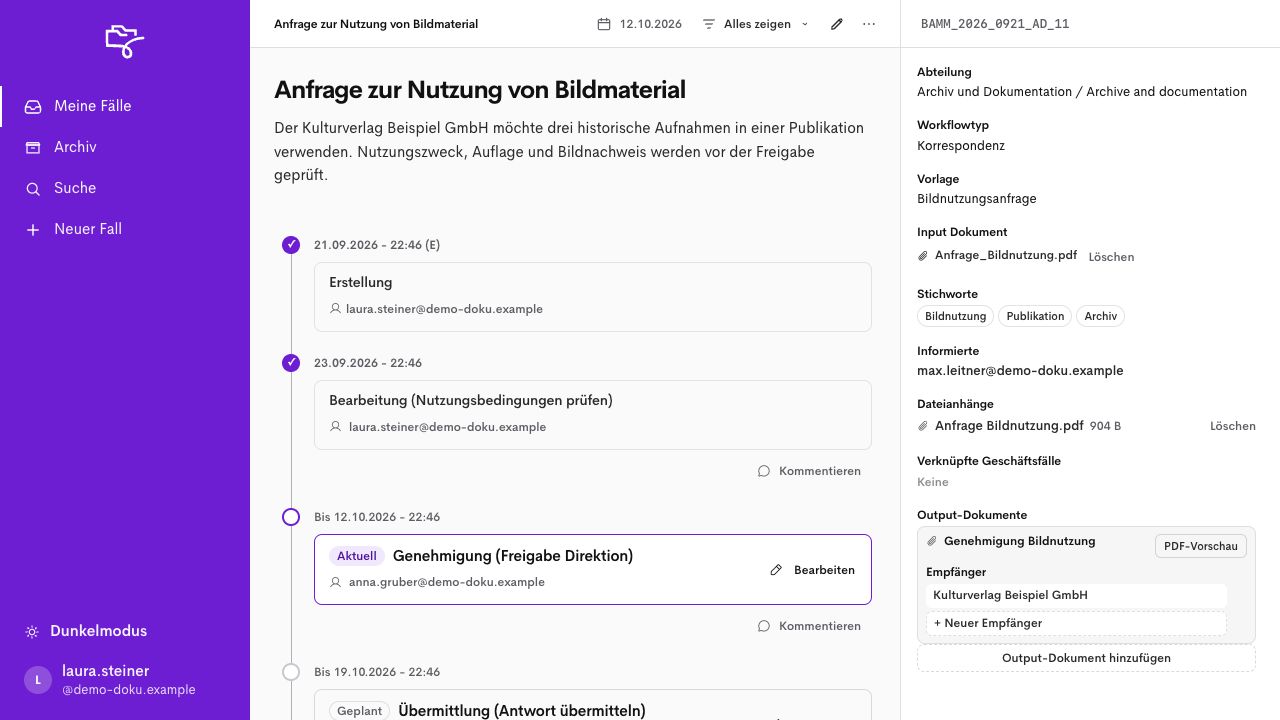
The current approval sits between completed handling and sending that is still planned. Context and documents appear on the right. The image shows fictional example data.
Separate case context from the action assignment
Section titled “Separate case context from the action assignment”Check the department, workflow type, template, input document, file attachments, and linked cases. Informed people receive intended information. This does not give them responsibility for an approval action. The person or group named at the current action is authoritative.
Comment (Kommentieren) adds a note. Processing completed (Bearbeitung abgeschlossen) completes a step. Grant approval (Genehmigung erteilen) or Refuse approval (Genehmigung ablehnen) documents a decision. Send now (Jetzt übermitteln) carries out the intended sending process. Merely editing the title replaces none of these actions.
Prepare a handoff
Section titled “Prepare a handoff”Before completing your step, record the result and necessary conditions and check the documents. Afterwards, check the next current action and its responsibility. For a deadline warning, clarify the date. Do not independently switch to a later planned step.
Add and check files
Section titled “Add and check files”Prerequisites
Section titled “Prerequisites”Required role: Case handling with editing permission.
The case is clearly identified. File formats, size limits, and permitted contents have been clarified locally. This edition does not establish unverified limits.
-
Open the case and compare the reference. On the right of the case view, check Input document (Input Dokument) and File attachments (Dateianhänge). The main document and supplementary files have different purposes.
-
Open Edit (Bearbeiten) to add the incoming file or case attachments in the editing form.
-
Use Input document: (Input-Dokument:) for the actual incoming document and File attachments: (Dateianhänge:) for supplementary files. Follow the displayed selection or upload field.
-
Select Save (Speichern) when editing the case form. Wait for the upload and save message.
-
Open the case again. Check the file name and assignment, and open the saved file to check its actual contents.
Check the result
Section titled “Check the result”The correct file is available in the correct case. A file name without readable contents is insufficient for this check. Also check whether the file should actually be selected as an attachment to a response. An existing case attachment does not automatically authorise sending it.
If the process differs
Section titled “If the process differs”For upload errors, first check existing files, then the format, size, and local storage route. File access can depend on permissions and connected storage.
Set actions and responsibilities
Section titled “Set actions and responsibilities”Prerequisites
Section titled “Prerequisites”Required role: Case handling with permission to edit actions.
You know the approved process and its subject-specific responsibilities. Actions may already have been created from the workflow type.
-
Open the case and first check existing actions, their order, and the current step.
-
For a case without actions, use + New action (+ Neue Aktion). Open an existing action through Edit (Bearbeiten) in its action controls. The operation for inserting between existing steps has not yet been confirmed for this edition. If you need such an insertion, establish the appropriate route with administration.
-
Check Action title (Titel der Aktion), Action type: (Aktionstyp:), and Action description (Aktionsbeschreibung). When you edit an existing action, its type may be displayed only. Use only types approved for your organisation.
-
Under Assigned people (Zugewiesene Personen), select either Person (Person) or Group of people (Personengruppe), then Select person (Person wählen) or Select group (Personengruppe wählen) respectively.
-
Check Set deadline (Frist einstellen) if the action needs a deadline. Compare it with the case deadline and the other actions.
-
Select Create (Anlegen) for a new action or Save (Speichern) for a change. Then check the actual order and responsibility in the case.
Check the result
Section titled “Check the result”The required actions and responsible people are clear. The next action follows from the specific case process. Check Current (Aktuell) and Planned (Geplant) separately. A person assigned for later takes over the step only when it becomes due.
If the process differs
Section titled “If the process differs”A saved contact under Informed people does not replace responsibility for an action. Do not delete the last action to close the case. Use the intended closure route.
Process an approval
Section titled “Process an approval”Prerequisites
Section titled “Prerequisites”Required role: The person responsible for the current approval action.
The case and documents are accessible. The approval is marked Current (Aktuell). A planned approval is not yet the step due. You are authorised for this approval action.
-
Open the case from My cases (Meine Fälle) or Waiting for you (Wartet auf Dich) and compare the case reference.
-
Check incoming documents, the handling result, the current approval action, and the deadline.
-
Record necessary reasons and conditions in the case according to the local procedure.
-
After the substantive review, select Grant approval (Genehmigung erteilen) or Refuse approval (Genehmigung ablehnen). This selection documents a decision.
-
Check the completed or refused step and the actual next current action. If approval is refused, clarify further handling according to the specific workflow.
Check the result
Section titled “Check the result”The decision is traceable at the correct step of the correct case. A colour, comment, or deadline warning does not replace the explicit decision. A prepared response must not anticipate the decision.
If the process differs
Section titled “If the process differs”If the decision fields are missing, check responsibility, order, and possible preceding checks. Following refusal, the response must not be sent unchecked as an approved response.
Prepare a response
Section titled “Prepare a response”Prerequisites
Section titled “Prerequisites”Required role: Response handling with document and recipient permissions.
The case uses an approved process with output documents. The template, basis for the decision, and recipients are known.
-
In the correct case, open an existing Output document (Output-Dokument) through its title, or use Add output document (Output-Dokument hinzufügen) for a new document. For a new document, select the approved template under Select document template (Dokumentvorlage wählen), then Next (Weiter). An existing document opens directly in the editing form.
-
Check Subject (Betreff), File name (Dateiname), and Output text (Output-Text). The response must match the documented decision and its conditions.
-
Check Email text (E-Mail-Text) and Select attachments (Anlagen auswählen). The output text appears in the document, and the email text in the accompanying message. Both must reflect the same decision and appropriate conditions. Select Save output document (Output-Dokument speichern) or, for a change, Save changes (Änderungen speichern).
-
At the output document, select + New recipient (+ Neuer Empfänger) if no suitable recipient exists yet.
-
Check Name / Company (Name / Firma), Address details (Adressdaten), and Email (E-Mail). Select Save recipient (Empfänger speichern) or Save changes respectively.
-
Open the PDF preview. Check the content, recipient, date, and attachments. In the checked interface, the PDF preview is available only once a recipient exists.
Check the result
Section titled “Check the result”The checked output document is prepared with the correct recipient. This does not mean it has been sent.
If the process differs
Section titled “If the process differs”If the template or document area is missing, check the workflow type and configuration. Do not use a different template merely to proceed. In the checked version, the case creation form does not offer an active document template selector.
Distinguish the document from the message
Section titled “Distinguish the document from the message”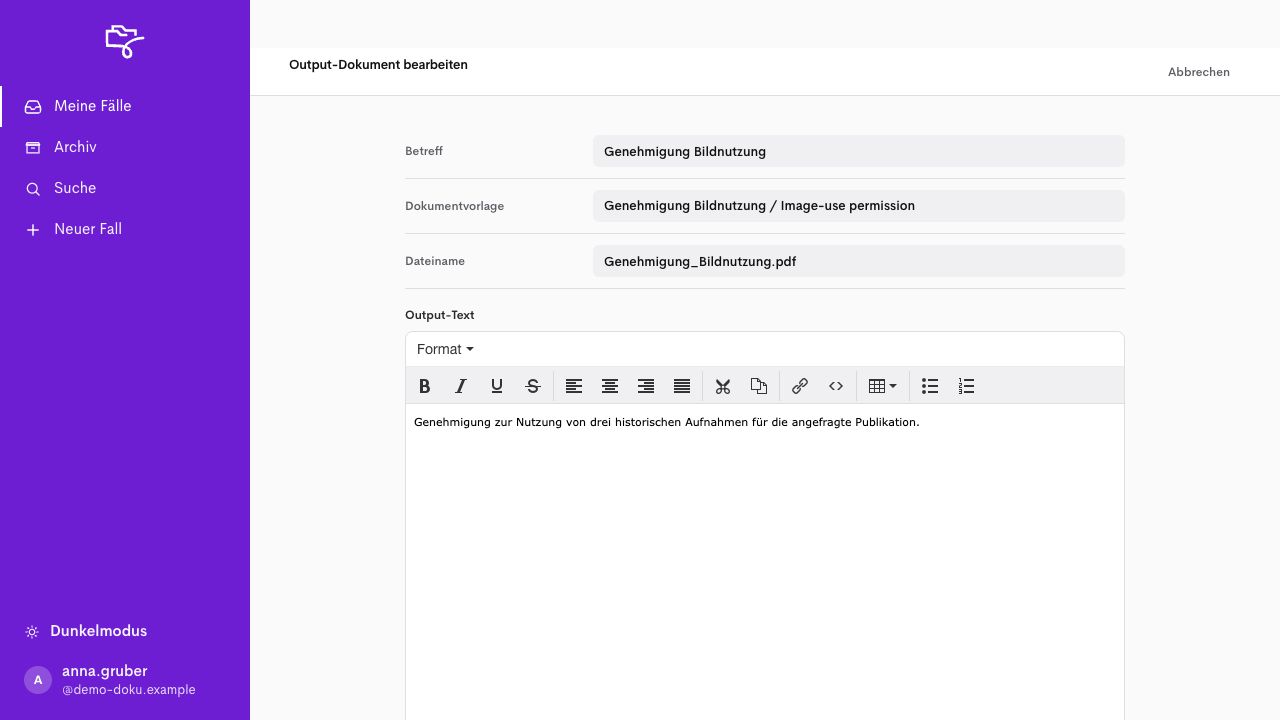
The output text forms the subject-specific document content. Email text and attachments follow further down the form. Check all parts before sending. The image shows fictional example data.
Send a response
Section titled “Send a response”Prerequisites
Section titled “Prerequisites”Required role: The person responsible for the current sending action.
Approval and other prerequisites are fulfilled. The sending action is Current (Aktuell) and assigned to you or your intended group. The output document, recipient, email text, and attachments have been checked. The delivery route intended for the process is configured.
-
Open the correct case and check that sending is the current action.
-
Check the output document, email text, selected attachments, and all assigned recipients again. A visible prepared document is not yet a sent version. Send now (Jetzt übermitteln) can trigger actual sending.
-
Select Send now.
-
Check the completed sending step and the entry under Sent documents (Versendete Dokumente). If necessary, open View (Anzeigen) to check the saved version.
-
If the sending state remains unclear, have the intended email or delivery route checked before triggering another send.
Check the result
Section titled “Check the result”Sending is documented in the case. The documented sending state alone does not prove receipt by the recipient.
If the process differs
Section titled “If the process differs”A timeout does not prove that nothing was sent. Sending again can result in duplicate delivery. Establish the actual state with local administration.